Almost every fresher is told to "put your projects on GitHub," yet very few are shown how. This Git and GitHub for freshers guide starts from zero: what Git and GitHub are, how to install and set them up, the commands you will use every day, how to work with branches and pull requests, how to fix common mistakes, and how to turn your GitHub profile into a portfolio that interviewers can actually read.
Every command below is real and safe to run on a practice project. You will also find a README template, a .gitignore example, a profile checklist, Git interview questions and the mistakes that make fresher profiles look weak. Take your time with each section and type the commands yourself.
|
Explore VibrantMinds VibrantMinds Technologies is a Pune-based IT training and recruitment company. Learn more about its courses and placement process, or visit the candidate portal. |
What Are Git and GitHub? What Is the Difference?
• Git is a free, open-source version control system. It runs on your computer and records every change you make to your files, so you can go back to an earlier version, compare changes and work on new features without breaking working code.
• GitHub is an online platform that hosts Git repositories. It lets you back up your code, share it, collaborate through pull requests and showcase projects. Similar platforms such as GitLab and Bitbucket work in much the same way.
In short: Git is the tool; GitHub is one place to keep what the tool creates.
Why Freshers Should Learn Git and GitHub
Git is a standard tool in software teams, so developers, testers and data professionals are generally expected to know the basics. For a fresher it also solves a practical problem: you have no work experience to show, and a well-organised GitHub profile lets an interviewer see real code, real projects and how you work. Many interviewers do look at a candidate's repositories before or during an interview, so a clean profile can only help, and an empty one gives them nothing to discuss.
How Git Works: Four Places Your Code Lives
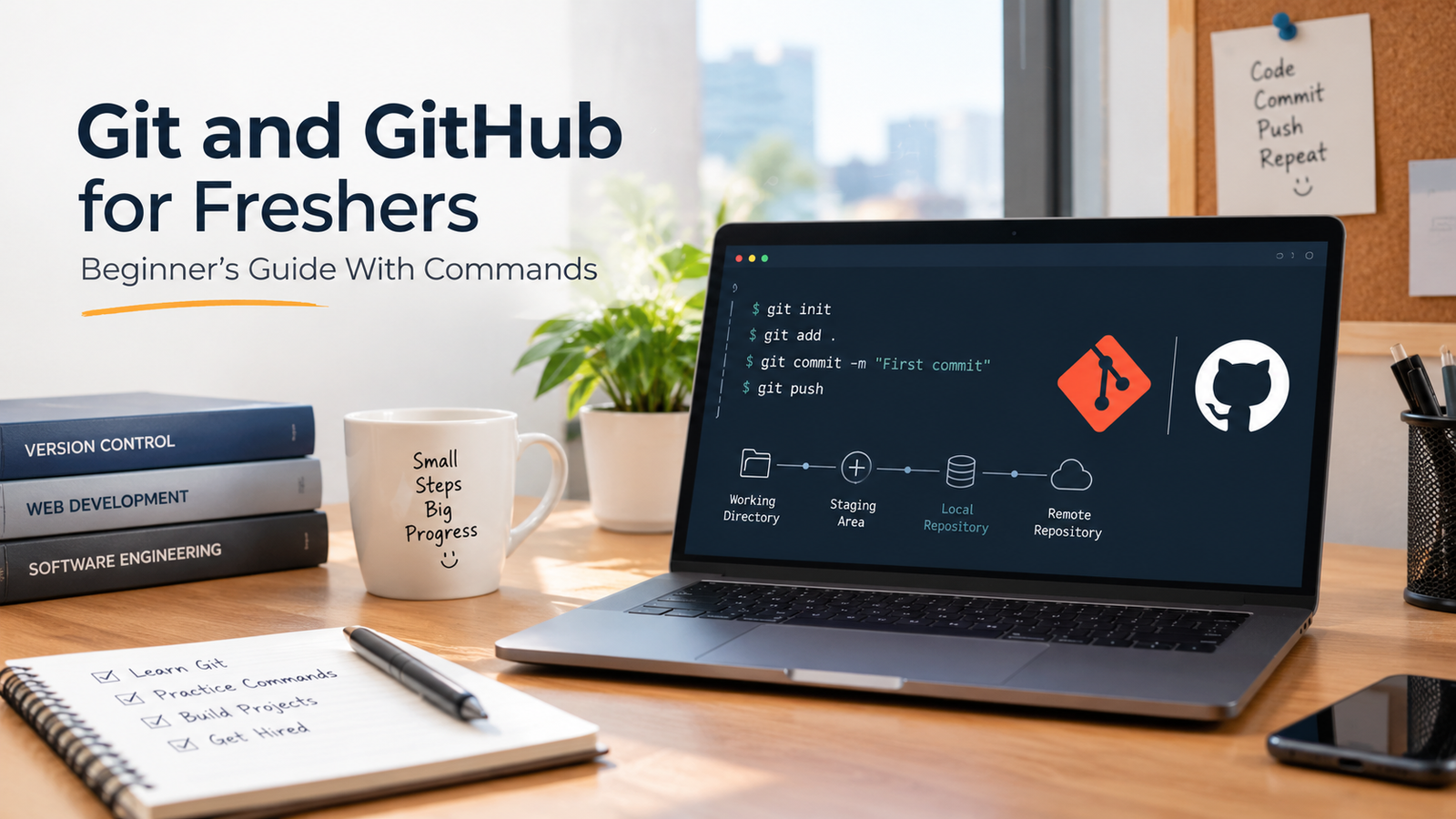
Understanding these four places makes every Git command make sense. Your files start in the working directory. When you choose which changes to include in the next save, you move them to the staging area with git add. A commit then records those staged changes permanently in your local repository. Finally, git push uploads your commits to the remote repository on GitHub.

To bring changes the other way, git pull downloads new commits from GitHub, and git clone copies an entire repository to your computer for the first time.
Git and GitHub Setup: Step-by-Step for Beginners
Step 1: Install Git and Create a GitHub Account
Download Git from the official Git website and install it with the default options. Then create a free GitHub account. Choose a professional username, because it appears in your profile link and on your resume. Check that the install worked:
TERMINAL
git --version
Step 2: Tell Git Who You Are
Git attaches your name and email to each commit. Run these once. Use the same email as your GitHub account so commits link to your profile.
TERMINAL
git config --global user.name "Your Name"
git config --global user.email "you@example.com"
Step 3: Create Your First Repository
A repository (repo) is a project folder that Git tracks. Create a folder, move into it and initialise Git:
TERMINAL
mkdir student-result-system
cd student-result-system
git init
Create a file such as README.md, then check what Git sees:
TERMINAL
git status # shows untracked and changed files
Step 4: Stage and Commit Your Work
TERMINAL
git add README.md # stage one file
git add . # or stage everything in the folder
git commit -m "Add project README"
git log --oneline # view your history in short form
A commit is a snapshot with a message. Write messages that say what changed, in the present tense: "Add login form," "Fix marks calculation," "Update README." Avoid "final," "changes" or "asdf." Small, focused commits make your history readable.
Step 5: Connect to GitHub and Push
On GitHub, click New repository, give it the same name, and create it without adding any files. GitHub then shows you the commands to connect your local repository. They look like this:
TERMINAL
git branch -M main
git remote add origin https://github.com/your-username/student-result-system.git
git push -u origin main
GitHub does not accept your account password for command-line Git over HTTPS. Use a personal access token or an SSH key instead, following GitHub's current instructions in its documentation. After the first push with -u, you can simply type git push in that branch.
Step 6: Clone Someone Else's Repository
To get a copy of an existing project, including your own on a new computer, use clone:
TERMINAL
git clone https://github.com/your-username/student-result-system.git
Git Branches and Merging: Work Without Breaking Your Main Code
A branch is a separate line of work. The main branch holds your stable code. When you build a new feature, you create a branch, work there safely, and merge it back when it works. This is how teams add features without breaking the working version.

TERMINAL
git branch # list branches
git switch -c feature/login # create and move to a new branch
# ... edit files, then:
git add .
git commit -m "Add login form"
git switch main # go back to main
git merge feature/login # bring the feature into main
git branch -d feature/login # delete the finished branch
You will also see git checkout -b in older tutorials. It does the same thing as git switch -c for creating a branch.
Merge Conflicts: What They Are and How to Fix Them
A merge conflict happens when two branches change the same lines of a file and Git cannot decide which version to keep. It is normal, not an error in your skills. Git marks the conflicting area inside the file:
CONFLICT MARKERS
<<<<<<< HEAD
int passMarks = 40;
=======
int passMarks = 35;
>>>>>>> feature/login
To resolve it, open the file, decide what the final code should be, delete the marker lines, then stage and commit the result:
TERMINAL
git add Student.java
git commit -m "Resolve merge conflict in pass marks"
Pull Requests: How Collaboration Works on GitHub
A pull request (PR) asks the owner of a repository to review and merge your changes. The usual flow on a team or an open-source project is:
1. Fork or clone the repository, then create a new branch for your change.
2. Commit your work and push the branch to GitHub.
3. Open a pull request, describing what you changed and why.
4. Respond to review comments, update the branch and wait for the merge.
Contributing even one small, well-explained pull request, such as a documentation fix, teaches you the workflow that real teams use.
How to Undo Mistakes in Git
TERMINAL
git restore file.txt # discard unsaved changes in a file
git restore --staged file.txt # unstage a file but keep the changes
git commit --amend -m "New msg" # fix the last commit message
git revert <commit-id> # make a new commit that undoes an old one
Be careful with git reset --hard: it permanently throws away uncommitted work. If you are unsure, use git revert or ask a mentor before you run a destructive command.
Git Commands Cheat Sheet for Freshers
MOST-USED COMMANDS
git init start tracking a folder
git clone <url> copy a repo from GitHub
git status see what changed
git add . stage all changes
git commit -m "message" save a snapshot
git log --oneline view history
git diff see exact changes
git branch list branches
git switch -c <name> create and move to a branch
git merge <branch> combine a branch into the current one
git pull download and merge remote changes
git push upload your commits
How to Build a GitHub Profile That Recruiters Notice
Having code on GitHub is only half the job. How you present it decides whether someone stays and reads. Use this anatomy as a checklist:

Create a Profile README
GitHub shows a special README on your profile when you create a repository whose name is exactly the same as your username. Use it to introduce yourself briefly, list your skills and link to your best work.
PROFILE README.MD (EXAMPLE)
# Hi, I'm [Your Name]
Computer Engineering graduate from Pune, focused on Java and SQL.
## Skills
Java | Spring Boot | MySQL | Git | Postman
## Projects
- Student Result Management System (Java, Spring Boot, MySQL)
- Expense Tracker (Java, JDBC, MySQL)
## Contact
LinkedIn: [your link] | Email: [your email]
Write a README for Every Project
A project without a README looks unfinished. Each README should answer what the project does, which technologies it uses, how to run it and what it looks like.
PROJECT README.MD TEMPLATE
# Student Result Management System
A web application to manage students, subjects and marks.
## Features
- Login for admin and teacher roles
- Add, update and delete student records
- Generate rank and report cards
## Tech Stack
Java, Spring Boot, MySQL, Maven
## How to Run
1. Clone the repository
2. Create a MySQL database named studentdb
3. Update application.properties with your database details
4. Run the application and open http://localhost:8080
## Screenshots
(add 2 or 3 images)
Use a .gitignore File and Never Commit Secrets
A .gitignore file tells Git which files not to track, such as compiled files, IDE settings and local environment files. More importantly, never commit passwords, API keys, database credentials or personal data. Once something is pushed to a public repository, treat it as exposed, even if you delete it later.
.GITIGNORE (JAVA AND PYTHON EXAMPLE)
# Java
target/
*.class
.idea/
*.iml
# Python
__pycache__/
venv/
# Secrets and local settings
.env
application-local.properties
Pin Your Best Repositories
GitHub lets you pin up to six repositories to the top of your profile. Pin two to four of your strongest, most complete projects, each with a clear README and a short description on the repository page. Add topics such as java, spring-boot or data-analysis to help people understand what each one is.
What Should a Fresher Put on GitHub?
• Complete projects you can explain, with README files and clear commit history.
• Practice work such as solved coding problems, SQL queries or test cases, organised in folders.
• Documentation of your learning, such as short notes or mini-projects for each new topic.
Quality beats quantity. Three solid, well-presented repositories impress more than thirty empty or copied ones. Avoid uploading someone else's code as your own; interviewers can tell, and it damages trust.
Common Git and GitHub Mistakes Freshers Make
1. Pushing everything in one giant commit with the message "final." Make small commits with clear messages.
2. Committing passwords, API keys or the .env file. Use .gitignore and keep secrets out of the repository.
3. Leaving repositories with no README. Recruiters will not guess what the project does.
4. Uploading compiled files and IDE folders instead of source code.
5. Faking activity. Steady genuine work looks better than a pattern of meaningless commits.
6. Copying repositories you do not understand. You will not be able to explain them in the interview.
7. Working directly on main for everything. Use branches for new features, even on solo projects.
Git Interview Questions for Freshers
• What is the difference between Git and GitHub? Git is the version control tool; GitHub is an online platform for hosting Git repositories.
• What is the difference between git pull and git fetch? fetch downloads remote changes without merging; pull fetches and merges them into your current branch.
• What is the difference between git merge and git rebase? Merge combines branches and preserves their history; rebase rewrites your branch's commits on top of another branch for a linear history.
• What is a merge conflict, and how do you resolve it? It happens when two changes touch the same lines. Edit the file, choose the final version, then add and commit.
• What is the staging area? A place where you gather changes before committing them.
• What does git clone do? It copies a remote repository, including its history, to your computer.
• How do you undo the last commit? For a local commit, git revert creates a safe undoing commit; git reset can remove it but should be used carefully.
• What is a pull request? A request to review and merge your branch's changes into another branch.
About VibrantMinds Technologies
VibrantMinds Technologies Pvt. Ltd. is a Pune-based IT training and recruitment company. It operates as a talent ecosystem that connects candidates, colleges and companies, with 1900+ partner colleges and 600+ hiring companies in its network.
Visit vibrantminds.in to learn about the company, or open the candidate portal at candidates.vibrantminds.in.
These are the VibrantMinds courses:
|
Course |
Duration |
Key topics |
|
Full Stack Java Development |
4–6 months |
Core Java, OOP, SQL and JDBC, web fundamentals, backend frameworks, front-end basics, projects |
|
Software Testing (Manual + Automation) |
2–5 months |
Testing fundamentals, test cases, bug reporting, SDLC and STLC, automation basics, interview preparation |
|
Core Java |
1–2 months |
Syntax, OOP, strings, collections, exception handling, practice programs |
|
Python & Data Science |
2–4 months |
Python basics, data handling, analysis libraries, visualisation, introduction to machine learning |
How VibrantMinds Helps You Build a Project Portfolio
A GitHub profile is only as strong as the projects inside it. The Full Stack Java Development course (4–6 months) lists projects among its topics, alongside Core Java, OOP, SQL and JDBC, web fundamentals and backend frameworks. The Software Testing (Manual + Automation) course covers test cases and bug reporting that you can document in your repositories, and Python & Data Science covers data handling, analysis libraries and visualisation that make good portfolio work. Ask the team which projects are part of the current batch and whether Git and GitHub practice is included.
The VibrantMinds 6-step placement pipeline then connects your preparation to real openings:
1. Requirement Mapping: understanding what hiring companies need, so your portfolio matches real requirements.
2. Candidate Sourcing: identifying candidates who fit those openings.
3. Screening & Assessment: checking skills and readiness, so gaps surface before a real interview.
4. Drive Coordination: organising recruitment drives with hiring companies.
5. Interview Support: preparing candidates for interview rounds, including project discussions.
6. Onboarding Follow-up: staying in touch after selection to support the joining process.
|
VibrantMinds tip Want guided project work and interview practice behind your GitHub profile? Talk to the team and ask which projects, assessments and interview support come with the batch you are considering. |
Real Outcomes: What Past Students Say
Feedback shared by past students mentions placements with companies such as Aress Software and Education Technologies, Saama Technologies and Three M Software. To be clear and fair: outcomes vary from person to person, depending on skills, effort, attendance, interview performance and company requirements. Nothing here is a guarantee of a job, so please confirm details directly with the VibrantMinds team before you decide.
Connect With VibrantMinds Technologies
Address: Viva Academy Building, Warje, Pune, Maharashtra 411052
Phone: +91 95035 79517
Email: support@vibrantmindstech.com
Website: https://vibrantminds.in/
Candidate portal: https://candidates.vibrantminds.in/
Join the Job-Update WhatsApp Groups
Group 1: https://chat.whatsapp.com/CUCS1derlmTFee2c9dyUHd
Group 2: https://chat.whatsapp.com/FvMf1fGYQYnHppQ8AwFX40
Group 3: https://chat.whatsapp.com/I7RNnGMkb2L8S8HibdyWpQ
|
Caution: never pay anyone to apply for a job or to get shortlisted. If someone asks for money in exchange for a job opportunity, stop and verify directly with the company or the VibrantMinds team. |
Frequently Asked Questions About Git and GitHub
Is GitHub free for freshers?
Yes. A free GitHub account lets you create public and private repositories and use core features. Check GitHub's current plans for any limits that may apply.
Should my repositories be public or private?
Make your portfolio projects public so recruiters can see them. Keep anything containing personal data, credentials or unfinished experiments private.
How many repositories should a fresher have?
There is no fixed number. Two to four polished, well-explained projects, plus some practice work, are better than many empty repositories.
Do I need to learn the command line, or can I use a GUI?
Visual tools and editor integrations can help, but learn the basic commands first. Interviews often ask about the commands, and the terminal works the same everywhere.
Will recruiters really check my GitHub?
Some will, especially for developer and automation roles, so keep it tidy. Even if they do not, it gives you real projects to talk about and share.
Can I use GitHub if I am a software tester or data analyst?
Yes. Testers can store test cases, bug reports and automation scripts, and analysts can store notebooks, queries and dashboards with clear README files.
What should I do if I accidentally pushed a password or API key?
Treat it as compromised: change or revoke the password or key immediately, then remove it from your files and follow GitHub's guidance on removing sensitive data from history.
What is the difference between fork and clone?
A fork is your own copy of someone else's repository on GitHub. A clone is a copy of a repository on your computer. Contributors usually fork a project, then clone their fork.
Final Thoughts: Make Your Work Easy to See
Git and GitHub are not hard once you practise the basic loop: edit, add, commit, push. Start with one real project today, write a clear README, make small commits with honest messages and pin it to your profile. A tidy repository with a project you can explain well will do more for your interviews than a long list of tools on your resume.
If you would like guided projects and interview preparation behind your portfolio, or help choosing a course that fits your goals, the VibrantMinds team is happy to talk it through.